ImageXtract: Local OCR for Mac: turn PDFs into structured Markdown
$5.99, state-of-art multilingual OCR. Forever yours.
Most OCR tools answer a one-off question: what words are in this image?
I built ImageXtract for a larger problem. I wanted to turn PDFs, scans and screenshots into structured information I could verify, search and reuse—without uploading the documents to a server or assembling my own OCR pipeline.
ImageXtract is a native document-extraction workspace for Apple Silicon Macs. It recognizes text and page regions locally, keeps related documents inside persistent projects, connects every result to its source, and exports the extracted content as Markdown, Word, JSON, HTML or spatial text.
It can also watch a folder and automatically turn new images and PDFs into Markdown files beside the originals.
$5.99 once · No account · No subscription · No cloud OCR service required
Get ImageXtract on the Mac App Store →
Come for private OCR. Stay for the document workspace.
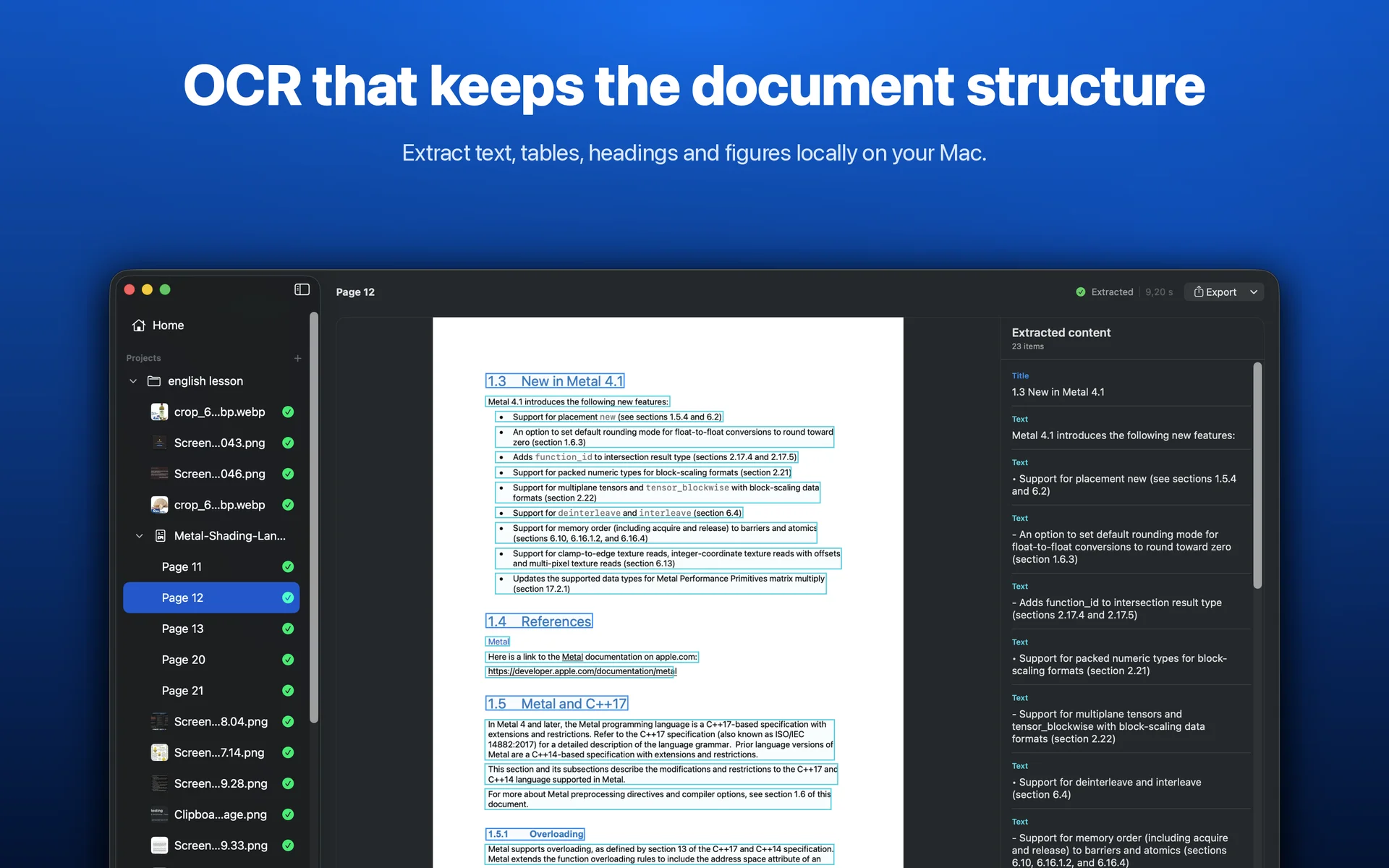
Turn a scanned PDF into structured content. ImageXtract detects headings, paragraphs, lists, tables, captions and figures instead of returning one undifferentiated block of text.
Check every result against the page. Color-coded regions connect extracted content to its exact location in the original document.
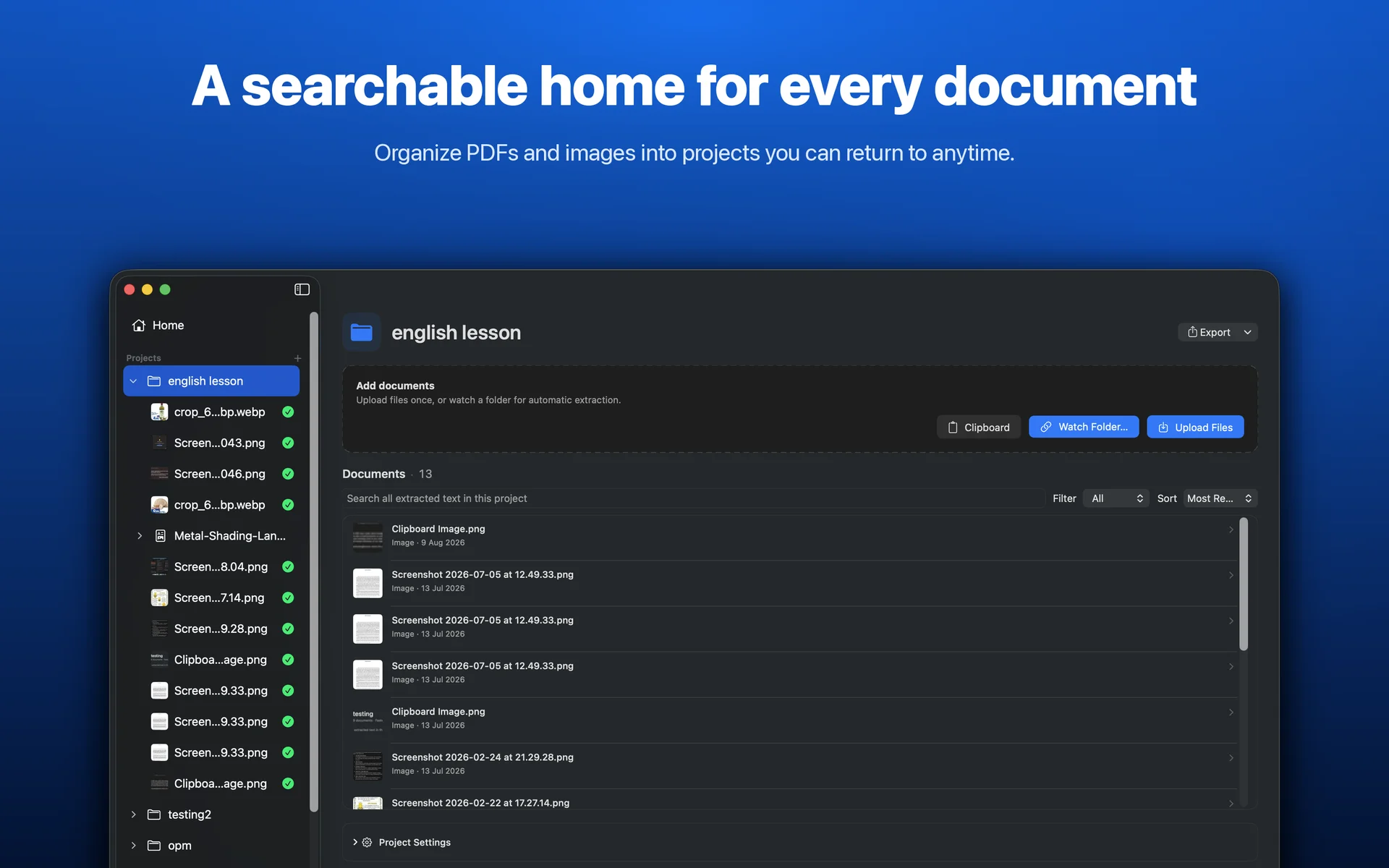
Find the information again later. Search an entire project or one PDF, then jump directly to the matching document, page and region.
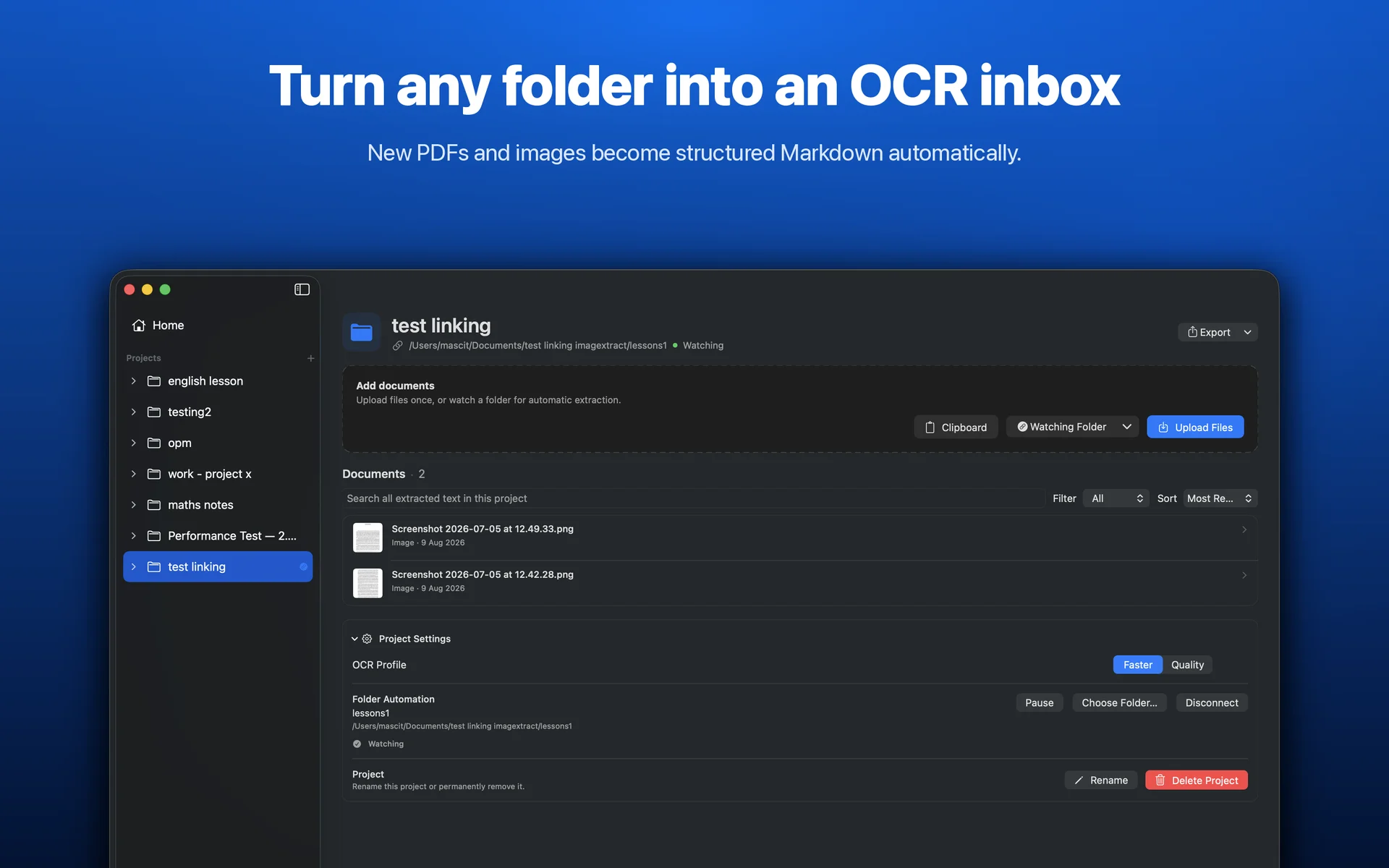
Automate recurring extraction. Link a folder and let new images and PDFs become structured Markdown automatically.
Why I built a local document-extraction app
Information often arrives as pixels rather than reusable text: a scanned research paper, a screenshot of an error, a photographed note, an invoice, a report containing tables, or a PDF with no usable text layer.
macOS Live Text is excellent when I need to copy a few visible words. For recurring document work, however, recognition is only the first step. I still need to preserve the document structure, inspect uncertain results, remember where information came from, organize multiple files, search them again later, and move the output into another workflow.
Cloud OCR and AI services can also be convenient, but they introduce an upload step and may transform a document rather than faithfully extract it. A do-it-yourself pipeline offers control, but it means maintaining the model runtime, PDF rendering, queues, storage, search, export and user interface myself.
ImageXtract packages that larger workflow into a native Mac app:
PDFs and images become structured, searchable and reusable information while the source documents remain on the Mac.
From a scanned PDF to structured content
Import a PDF and choose the pages you actually need. ImageXtract renders those pages locally and adds them to a persistent extraction queue as soon as they are ready, so OCR can begin before a long document has finished preparing.
For example, a range such as:
1-4, 7, 9-12
processes only those pages. Every page keeps a visible Queued, Extracting, Extracted or Failed state, and preparation or extraction can be paused, cancelled or retried.
The result is not just plain OCR text. Depending on the page, ImageXtract can identify:
- Titles and headings
- Paragraphs and lists
- Tables
- Captions
- Images and figures
That structure carries into the review and export workflows. A table can remain a table, headings can remain headings, and a detected figure can remain available as an image crop rather than disappearing into the surrounding text.
Review every result against its source
OCR output is more trustworthy when it remains connected to the original page.
ImageXtract opens a completed page with the rendered source on one side and an Extracted content inspector alongside it. Color-coded bounding boxes show where each region was detected. Hover over an item in the inspector and the matching box is highlighted on the page.
This makes it easier to answer practical questions:
- Did OCR read this number correctly?
- Is this text a heading or part of the preceding paragraph?
- Which page did this search result come from?
- Was this area recognized as a table?
- Can I reuse the detected figure as an image?
Text regions can be copied with one click. Tables receive a scrollable HTML preview. Detected image and figure regions can be opened at full resolution or copied as cropped images.
The source remains part of the result instead of becoming something you have to locate again in Finder.
Turn any folder into an OCR inbox
For recurring work, ImageXtract can link one folder to a project and observe it for supported images and PDFs.
When a new file appears, the app can automatically:
- Discover it
- Import it into the project
- Process it locally
- Add the extracted content to search
- Create a Markdown sidecar beside the original
The folder can therefore become a small local document-processing pipeline:
Research Inbox/
├── paper.pdf
├── paper.md
├── diagram.png
├── diagram.md
└── archive/
    ├── report.pdf
    └── report.md
This is useful for research papers, scanned notes, receipts, incoming reports, document archives and other folders where new material arrives repeatedly.
Observation continues while ImageXtract is running, even if its window is closed. If the app is quit, it reconciles the linked folder the next time it launches and discovers files that arrived in the meantime. A different existing Markdown file is not silently overwritten; ImageXtract reports an output conflict instead.
Search extracted documents like a local library
Once OCR finishes, the result becomes part of a local full-text search index. Search can cover an entire project or remain scoped to the PDF currently being reviewed.
Simple searches work as expected, while more precise queries make larger collections easier to navigate:
"annual revenue"
invoice OR receipt
invoice -draft
label:table
document:report
page:12
Results include a highlighted snippet together with their document and page context. Selecting one opens the matching source page and, when available, the exact detected region.
That changes OCR from a disposable conversion into a persistent retrieval workflow. Six months later, the extracted information and its original context are still available together.
Export to Markdown, Word, JSON, HTML or spatial text
ImageXtract supports several kinds of output because the right representation depends on what happens next:
- Markdown preserves ordered regions, headings, lists and tables, with links to exported figure crops where available.
- Word combines text, tables, multiple pages and embedded figures in a
.docxdocument. - JSON preserves region labels, recognized text, normalized coordinates and crop pointers for scripts and structured workflows.
- Spatial HTML keeps positioned content, semantic headings, lists, tables and images in a browser-friendly document.
- Spatial text approximates the page layout with monospaced text.
You can export one page, a complete PDF or an entire project. Text formats can also be copied directly to the clipboard, and detected figures can be exported as full-resolution PNG crops.
The goal is not simply to recognize words. It is to leave the information in a form that is useful to a writing tool, knowledge base, report, script or archive.
How the local AI pipeline works
ImageXtract is not a thin interface over a remote API. The application bundles a quantized Baidu Unlimited OCR model and tokenizer with a highly optimized C inference engine and Metal kernels for Apple Silicon.
The model runs inside a sandboxed local worker. Imported originals, rendered PDF pages, OCR text, region annotations, the full-text search index and exported files remain on the Mac.
The App Store build has no network entitlement. Its release configuration also disables model and image downloads during recognition, so OCR does not silently change depending on network access or a remote model update.
The rest of the application is designed around the realities of running document AI locally:
- PDF pages are prepared incrementally instead of materializing an entire long document at once.
- One OCR worker processes the persistent queue to keep memory and compute use predictable.
- Interrupted queued work can be recovered after relaunch.
- Document lists, pages, thumbnails and search results load incrementally.
- Faster and Quality profiles let a project choose the appropriate extraction trade-off.
Performance depends on the Mac, page resolution, document complexity and selected OCR profile. The important architectural property is predictable local inference: the same bundled pipeline works online or offline without sending the page to a cloud recognition service.
When should you use ImageXtract?
ImageXtract is designed for people who repeatedly work with documents rather than someone who needs to copy one short sentence once.
It is a particularly good fit when you have:
- Research papers or scanned material you will revisit
- Tables and structured layouts that plain OCR tends to flatten
- Private documents you do not want to upload
- Multiple PDFs that need to become searchable together
- A Markdown, Word, JSON or HTML workflow
- An incoming folder of documents that should be processed automatically
- A need to verify extracted values against their exact source
For a quick one-off text selection in a clear image, the Live Text feature already included with macOS may be enough. A broad PDF suite may be a better choice when the main job is editing, signing or rearranging PDFs. A custom script may be better when you need complete control over every pipeline component.
ImageXtract is for the space between those alternatives: a focused, private document-extraction workspace that remains useful after OCR finishes.
How to use ImageXtract
- Open Quick Extract for a one-off image, or create a persistent project.
- Add an image or PDF with the file picker, drag and drop, or clipboard import.
- For a PDF, select all pages or enter the page ranges you need.
- Choose the Faster or Quality OCR profile when appropriate.
- Review completed pages and their detected regions against the source.
- Search the project or PDF for the information you need.
- Export one page, a document or the complete project.
For recurring work, link a folder to the project and let ImageXtract discover new supported files and create Markdown sidecars automatically.
Current requirements and limitations
- ImageXtract requires an Apple Silicon Mac running macOS 15.5 or later.
- Password-protected PDFs are not currently supported.
- Local models and managed document artifacts require sufficient disk space.
- Recognition speed varies with document complexity, resolution, hardware and OCR profile.
- Automatic folder processing runs while the application process is active and catches up after the next launch.
These constraints are deliberate and visible. ImageXtract is focused on providing a predictable local workflow rather than promising that every document or Mac configuration behaves identically.